Level Up Your Setup: The Ultimate Guide to Controlling RGB on the AULA F75
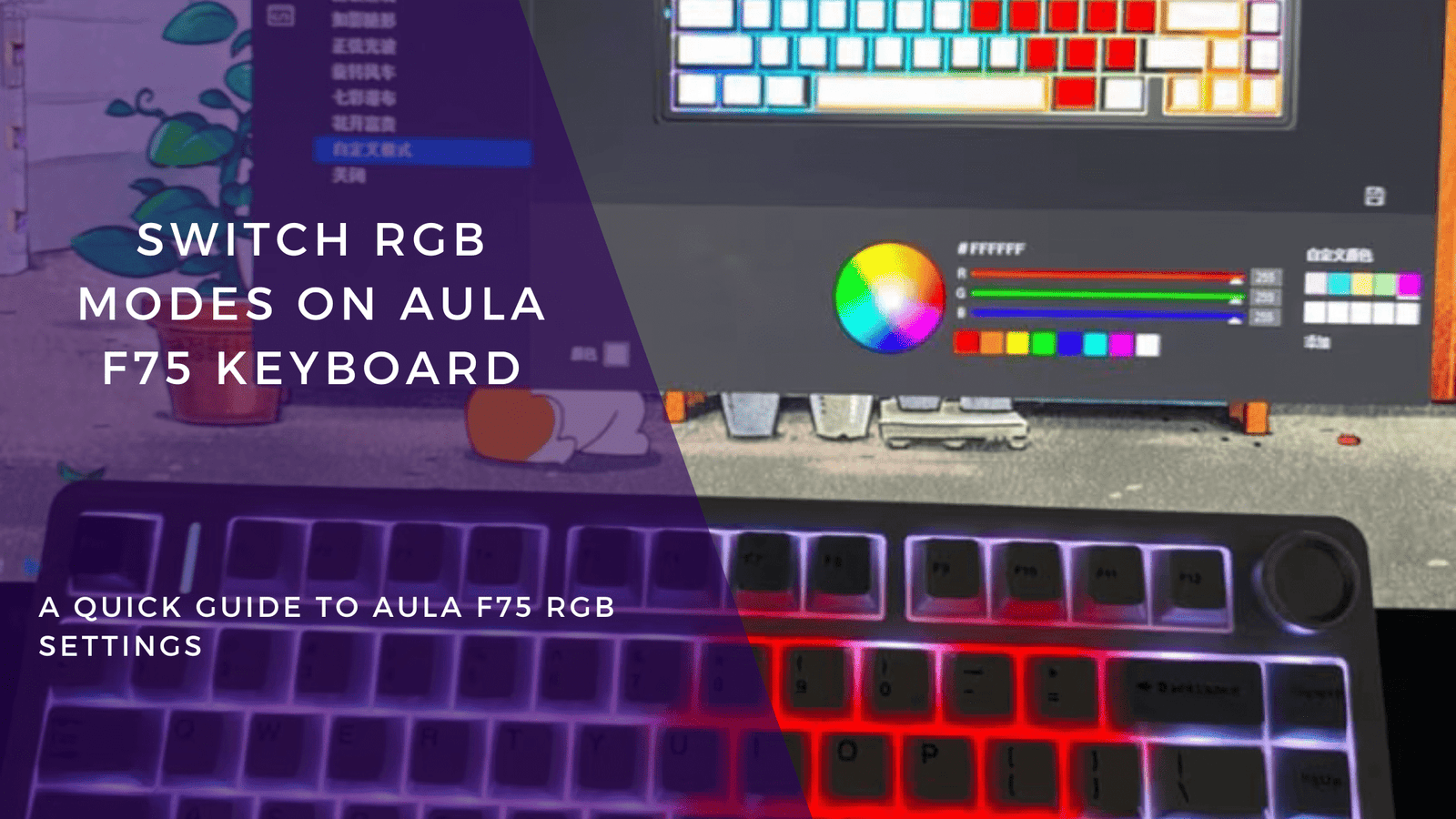
Got yourself an AULA F75? Smart move. This budget king mechanical keyboard has been absolutely dominating the scene thanks to its incredible out-of-the-box acoustics, creamy switches, and flex-cut PCB. But let’s be honest—a premium typing experience is only half the battle. If your desk mat is glowing and your PC case looks like a futuristic cyberpunk city, your keyboard needs to match the vibe.
The AULA F75 packs some serious RGB customizability under the hood, but the user manual that comes in the box can be a bit cryptic (or, if you’re like us, you probably lost it the second you unboxed the board).
The good news? You don’t need to download bloated, resource-heavy software to get your lighting right. You can control the entire light show right from your fingertips using built-in hardware shortcuts. Here is your ultimate cheat sheet to mastering the AULA F75’s RGB.
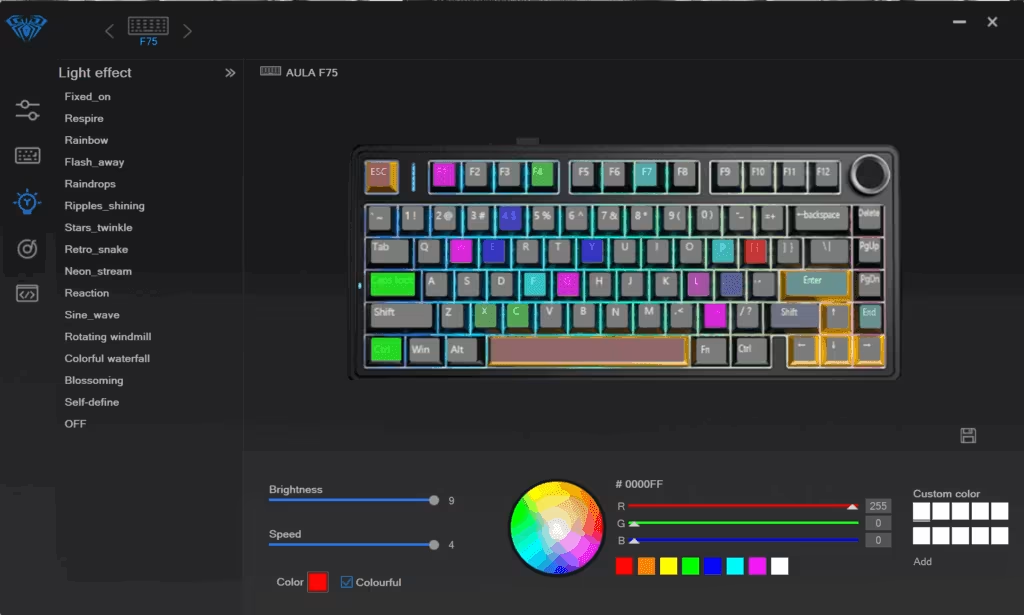
1. The Core Shortcuts: Master the Light Show
The magic happens when you pair the Fn (Function) key with specific keys on the right side of your board. Memorize these four commands, and you’ll never need to look at a manual again:
- Change the Animation Effect (
Fn + \): The F75 comes pre-loaded with 16 distinct RGB modes. Hit this combination to cycle through them. You’ll find everything from classic rainbow waves and breathing effects to reactive modes that light up only when you press a key. - Swap the Color Palette (
Fn + Tab): Found an animation style you love but hate the rainbow color scheme? HitFn + Tabto switch the mode to a single solid color. It will cycle through red, green, blue, yellow, cyan, purple, and white. - Adjust the Brightness (
Fn + Up / Down Arrow): Whether you need maximum brightness to show off your keycaps during the day, or you need to dim things down so you don’t blind yourself during a late-night gaming session, use the vertical arrow keys while holdingFn. - Control the Effect Speed (
Fn + Left / Right Arrow): For dynamic modes like the wave or ripple, you can control how fast the colors move. Speed it up for high-energy gaming sessions, or slow it down to a gentle crawl for a more relaxing workspace.
2. Pro-Tips for Advanced Lighting Control
Want to take your customization a step further? Here are a few lesser-known tricks for the AULA F75:
- Going Stealth (Stealth Mode): If you are sitting down to watch a movie or streaming and want zero distractions, you don’t have to unplug the board. Just mash
Fn + Down Arrowrepeatedly until the LEDs turn off completely. To bring them back to life, just hitFn + Up Arrow. - Check Your Battery via RGB: If you are using the F75 in 2.4GHz wireless or Bluetooth mode, you can actually check your battery life using the lighting. Hold down
Fn + Backspace. The number row (1–0) will light up to show you your remaining battery percentage (e.g., if keys 1 through 8 light up, you’re at roughly 80% battery). - The Ultimate Panic Button (Factory Reset): If you’ve messed around with the settings too much, changed the modes, altered the speeds, and just want to start fresh from scratch, hold down
Fn + Escfor a few seconds. The keyboard will flash, resetting all lighting and configurations back to factory defaults.
Why the AULA F75 RGB Pops So Well
If you’ve noticed that the RGB on this board looks incredibly vibrant, there’s a technical reason for it. The F75 utilizes South-Facing LEDs.
Unlike older mechanical keyboards that placed the LED at the top of the switch clone (North-facing), South-facing LEDs sit at the bottom of the switch socket—directly facing you as you sit at your desk. This ensures that the light shines brightly through the gaps between your keycaps rather than being blocked by the switch housing. It also means you have 100% compatibility with premium Cherry-profile keycaps without any annoying physical interference.
Wrap Up
Don’t settle for the stock out-of-the-box lighting profiles. Take thirty seconds right now to play around with these Fn shortcuts and dial in a look that matches your personal battlestation aesthetic. Whether you want a clean, minimalist static white glow or a blazing-fast neon wave, the AULA F75 can handle it all without ever needing external software.
Now go light up your desk!