Fix Your Board: The Ultimate AULA Keyboard Reset Guide
Did your macros suddenly stop working? Are your keys spitting out bizarre characters, or has your RGB frozen up entirely? Don’t panic, and definitely don’t buy a new board just yet. Before you rage-quit, it’s time to hit the panic button: a factory reset.
Whether you’re rocking the legendary AULA F75, the heavy-hitting F99, or any other board in their lineup, resetting your keyboard back to stock settings takes less than 10 seconds.
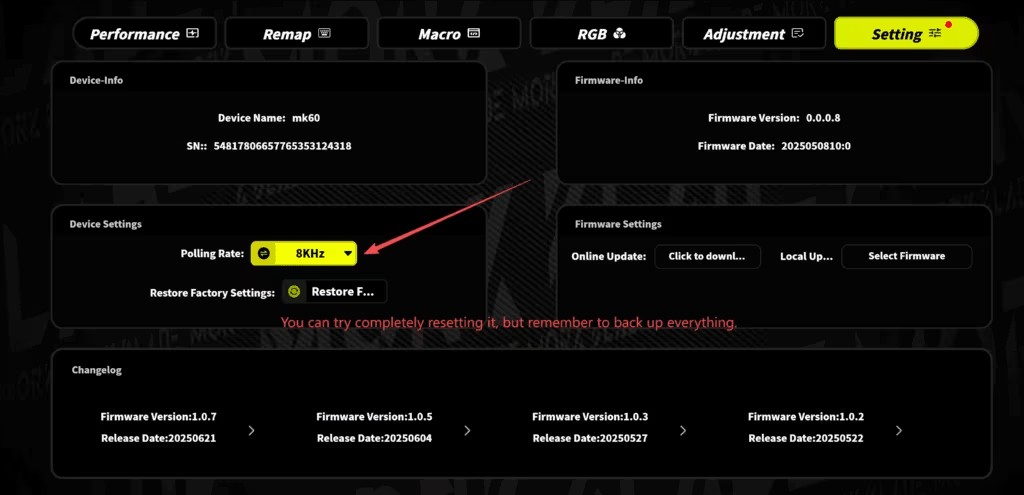
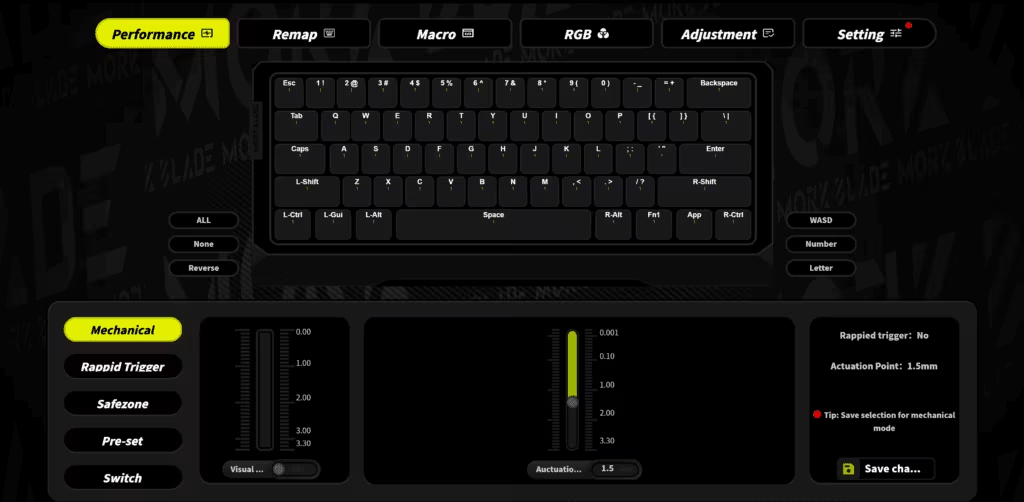
⚠️ Fair Warning: A factory reset will wipe out your custom lighting profiles and macros. If you spent hours fine-tuning your keymaps in the software, back them up before moving forward!
The Universal “Fix-Everything” Shortcut
If you aren’t sure exactly what model you have, try the universal AULA emergency combo first. It works on about 90% of their lineup.
- Make sure your keyboard is turned on and connected to your PC (wired mode is best for this).
- Hold down the Fn key.
- Mash the Esc key and hold them both down together for 5 full seconds.
- Watch the board: your backlights will flash dynamically or beep. That’s your sign that the slate has been wiped clean.
Model-Specific Cheatsheet
Some of AULA’s most popular boards have slight quirks when it comes to resetting. Find your specific weapon of choice below to get it done right:
AULA F75 / F75 Max
- The Combo: Hold
Fn + Esc. - What happens: The backlight will instantly flash and snap back to its default out-of-the-box mode.
- The Good News: The F75 is smart—resetting the lighting defaults will not wipe out your saved Bluetooth device pairings. (Just make sure if you’re using 2.4GHz wireless, switch the physical toggle to the right mode after resetting to prevent pairing drops).
AULA F98
- The Combo: Hold
Fnand turn the volume knob at the top right. - What happens: The indicators and keyboard LEDs will blink or shift colors wildly. If you don’t get a visual cue, pull the cable out, plug it back in, and try it again.
AULA F99 / F99 Pro & L99
- The Combo: Hold
Fn + Escfor a solid 5 seconds. - What happens: The board will completely restart itself and the stock wave pattern will boot up. If you are using Bluetooth on the L99, you may need to quickly remove the device from your Windows/Mac settings and re-pair it fresh.
AULA F108 / F108 Pro
- The Combo: Hold
Fnand tapEsc. - What happens: The full-sized board will blink or emit a quick audio alert. Test your keys immediately afterward to make sure the software glitch is cleared.
Still Acting Up? Try These Quick Troubleshooting Fixes
If you flashed the board and it’s still ghosting or completely unresponsive, the issue might not be the firmware. Run through this quick checklist:
- Kill the Software Bloat: Completely close out the AULA driver software on your PC. Sometimes a glitched app profile will override your hardware reset.
- The USB Port Swap: If you are plugged into a USB 3.0 port or an external hub, try plugging directly into a motherboard USB 2.0 port on the back of your PC. It’s way more stable for flashing resets.
- Power Check (Wireless Users): Low battery is the number one cause of “laggy keys” and frozen RGB. Throw the board on its braided cable, let it charge, or slap fresh batteries in if your model uses them.
Now your board is officially back to day-one status. Time to boot back up and get to typing!